Best Free AI Tools for Content Creation Beginners
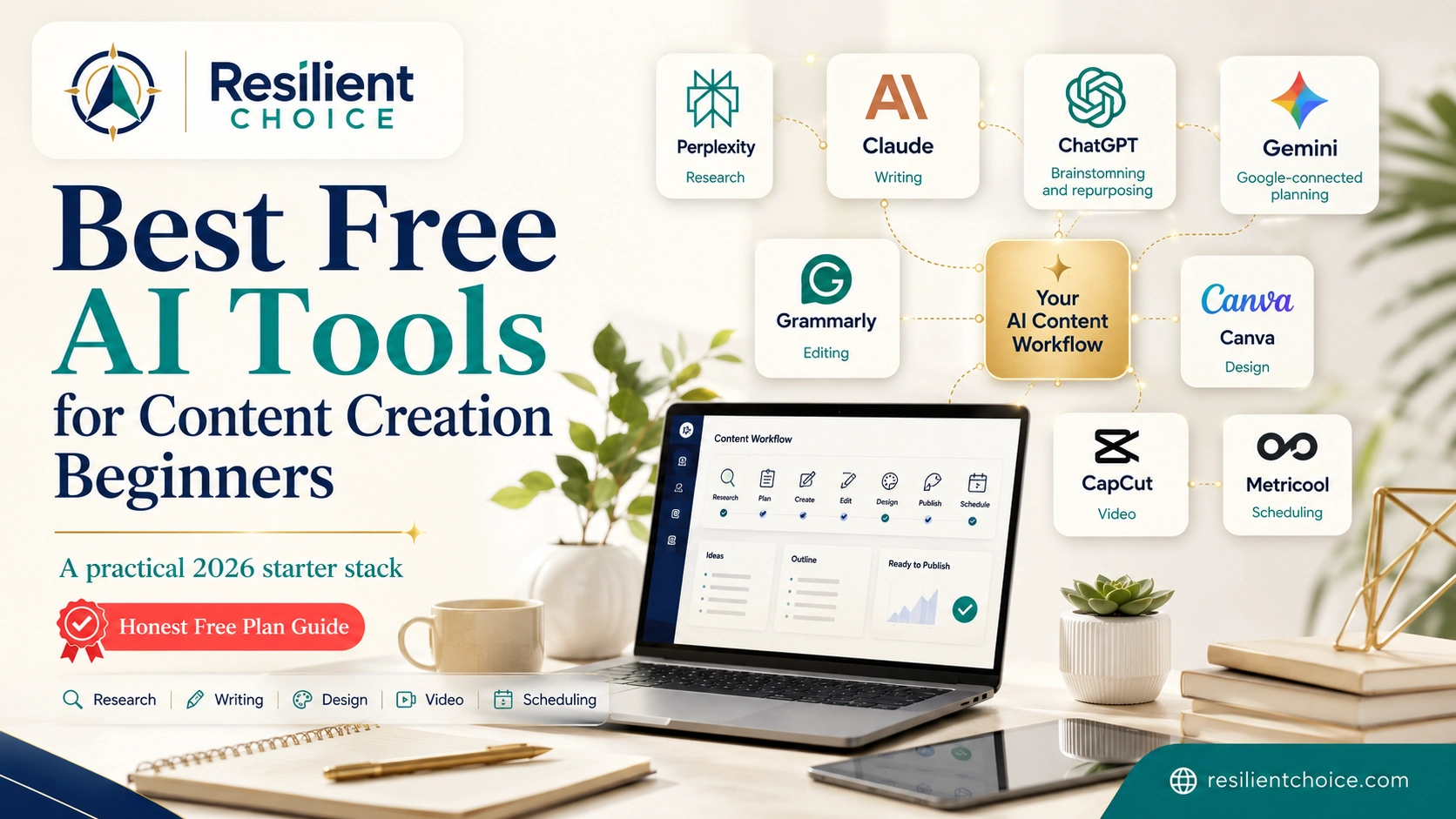
A practical 2026 starter stack for researching, writing, editing, designing, and publishing useful content without tool overload.
This guide is for beginners who want a clear content creation workflow, not another random list of 50 AI apps. You will see which free tool to use at each stage, where the limits are, and when human review is still required.
Starter Stack
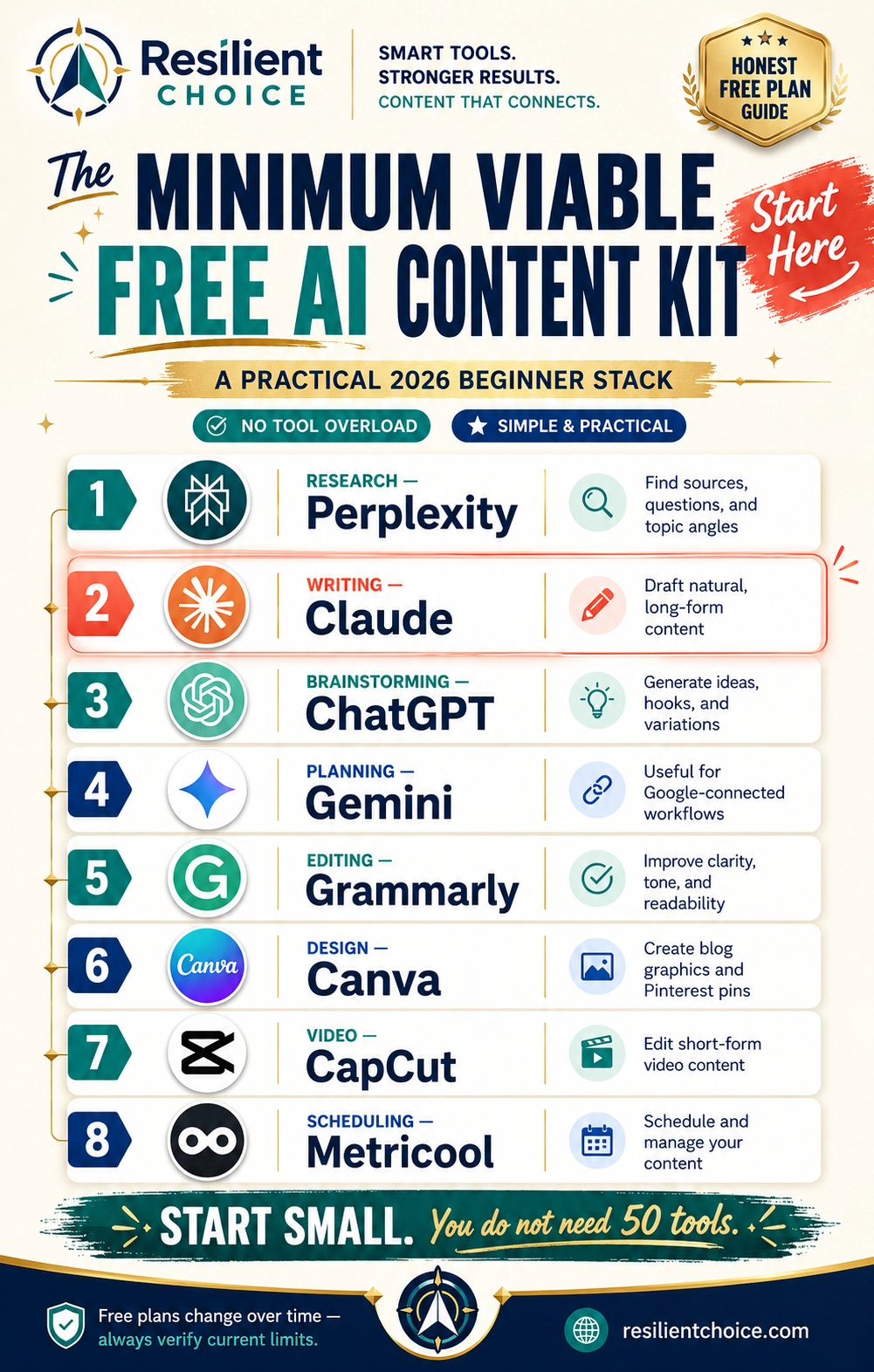
Quick Answer: The Minimum Viable Free AI Content Stack
The best free AI tools for content creation beginners are not the same for every task. A research tool should not be judged like a writing tool. A video editor should not be judged like a blog-writing assistant.
Here is the simple rule: start with one tool for each major stage of your content workflow. Add more only after you are actually publishing.
| Content Task | Best Free Tool to Start With | Good Backup | The Honest Catch |
|---|---|---|---|
| Research and source discovery | Perplexity | Gemini / Google Search | Do not copy answers blindly. Open important sources and verify them yourself. |
| Long-form writing | Claude | ChatGPT / Gemini | Free usage is not unlimited. Long prompts, files, and long chats can use your limit faster. |
| Brainstorming and repurposing | ChatGPT | Claude / Gemini | Useful for ideas and variations, but free access has usage limits. |
| Google-connected planning | Gemini | Google Docs / Sheets | Good for planning and second opinions, but still needs human review. |
| Editing and clarity | Grammarly | Claude + manual editing | Do not obsess over AI detector scores. Edit for usefulness and clarity instead. |
| Design and Pinterest visuals | Canva | Microsoft Designer | AI design and generation features may have monthly usage limits. |
| Short-form video | CapCut | Descript for testing | Avoid Pro templates, Pro effects, and premium assets if you want to stay free. |
| Scheduling | Metricool | Buffer / Pinterest native scheduler | Free scheduling tools usually limit posts, channels, or analytics history. |
Need a simple place to collect emails from your content?
Free AI tools can help you create content faster, but you still need a basic system to collect leads, build a landing page, and test an offer. Read our Systeme.io review for beginners to see whether the free plan is enough for funnels, email marketing, and digital products.
Read the Systeme.io Beginner Review
Internal guide — helpful before paying for separate funnel, email, and course tools.
The Tool Overload Trap
You do not need 50 AI tools to start creating content. In fact, signing up for too many is one of the fastest ways to stop publishing.
At first, it feels productive. You test one tool for blog ideas, another for images, another for captions, another for video scripts, another for scheduling, and another for automation. A week later, you have seven accounts, five dashboards, three half-written drafts, and nothing published.
Do not build a complicated AI system before you have a simple publishing habit. Start with one research tool, one writing tool, one editing tool, and one design tool. Add video, scheduling, and automation later.
The goal is not to look advanced. The goal is to publish useful content consistently. If focus is your bigger problem, pair this AI stack with simple productivity tips for work from home beginners so your tools actually turn into finished work.
Phase 1: Best Free AI Research Tools for Beginners
Before you write anything, you need to understand the topic. This is where many beginners go wrong. They open a writing tool first, ask it to “write an article,” and then wonder why the result sounds generic.
Research comes first. Writing comes second.
Perplexity — Best First Step for Research and Source Discovery
Perplexity is the first tool I would use when researching a new content topic. Not because it should write the final article, but because it helps you find questions, angles, sources, and competing viewpoints before you start writing.
Use it to ask questions like:
- What are beginners confused about in this topic?
- What are the common mistakes people make?
- What are current examples, limits, or pricing changes I should verify?
- What are competitors missing in their articles?
Perplexity works well as a research assistant because it is built around search and source-backed answers. But do not treat any AI answer as final truth. Open the important links, check dates, and verify claims before you publish.
Official reference: Perplexity
Gemini — Good for Google-Connected Planning
Gemini is useful if your content workflow already lives around Google Search, YouTube, Gmail, Docs, Sheets, or Android. I would not use it as my only research source, but it is helpful for planning, summarizing, brainstorming, and getting a second angle on a topic.
For example, you can use Gemini to organize rough ideas into a content plan, compare article angles, or turn a messy topic into a simple outline.
Official reference: Google Gemini
Google Search — Your Reality Check
AI tools are useful, but Google Search is still where you see the real search results. Before publishing a serious article, search your main keyword manually and check:
- What titles are already ranking?
- What questions appear in People Also Ask?
- Which articles feel outdated?
- Which competitors ignore free-plan limits?
- What can your article explain more clearly?
This is how you avoid writing another generic AI article that says the same thing as everyone else.
Phase 2: Best Free AI Writing Tools for Beginners
Once your research is ready, then you can write. This is where we need to be fair: ChatGPT is useful, but it is not automatically the best first tool for every writing task.
For long-form content, natural tone, and rewriting rough ideas into readable paragraphs, Claude deserves serious placement.
Claude — Best for Natural Long-Form Writing
Claude is one of the strongest free AI tools for turning messy ideas into clear, natural-sounding writing. If you are creating blog posts, newsletters, educational guides, scripts, or long-form content, Claude should be near the top of your stack.
A simple way to use Claude is to paste your rough notes and ask it to shape them into a beginner-friendly section without hype.
“Rewrite these rough notes into a clear, practical section for beginners. Keep the tone natural and human. Avoid hype, avoid generic AI phrases, and add one simple real-world example.”
The catch is that Claude’s free usage is not unlimited. Anthropic describes usage as a “conversation budget,” meaning longer chats, long documents, attachments, and heavy use can reduce how much you can do before waiting for the limit to reset.
Official reference: Claude usage and length limits
ChatGPT — Best for Brainstorming, Outlines, and Repurposing
ChatGPT is a strong all-round assistant. I like it most for brainstorming, creating outlines, generating headline variations, writing social captions, and repurposing one piece of content into multiple formats.
For example, after writing a blog section, you can use ChatGPT to create:
- five Pinterest title ideas
- three short Instagram caption options
- a YouTube Shorts script
- a simple email summary
- a list of FAQ questions
But it should not be presented as the best tool for everything. If you are researching sources, start with Perplexity. If you are shaping long-form writing into a more natural tone, Claude may be the better first choice.
ChatGPT Free is useful for beginners, but it has usage limits. OpenAI says free-tier users can use GPT-5.5 only a limited number of times within a five-hour window before hitting limits or switching to a smaller model.
Official reference: ChatGPT Free Tier FAQ
Gemini — Useful Backup Writing Assistant for Google Users
Gemini can also help with writing, especially if you want another angle before finalizing your content. It is useful for summarizing ideas, checking structure, brainstorming supporting points, and planning content inside a Google-style workflow.
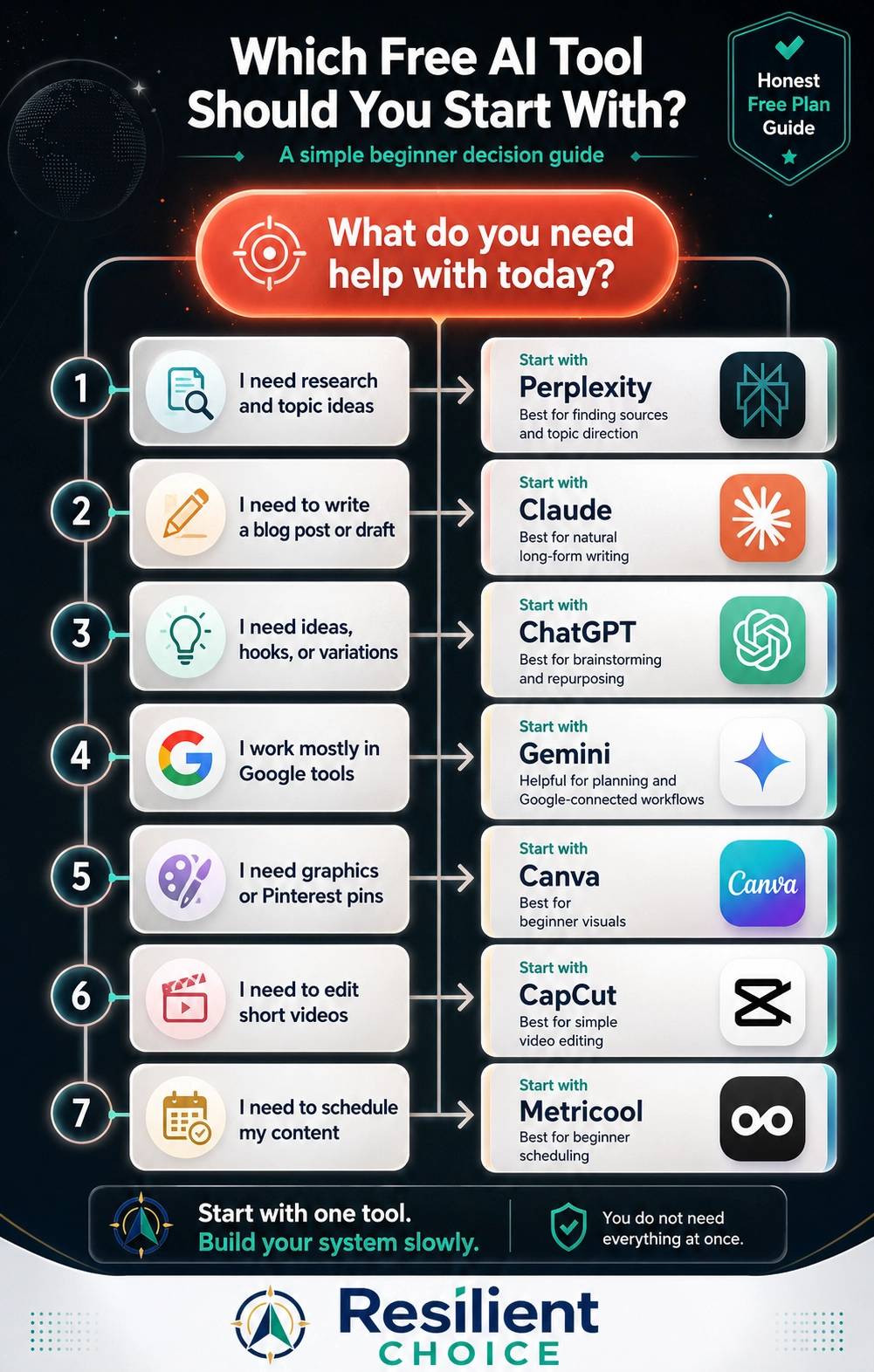
The best use is not to ask Gemini, Claude, and ChatGPT to all write the same full article. That usually creates confusion. Instead, give each tool a clear job:
Use Claude for
Natural long-form drafting and human-sounding rewrites.
Use ChatGPT for
Ideas, outlines, hooks, and repurposing content.
Use Gemini for
Planning, summaries, and Google-connected workflows.
Use Perplexity for
Research, sources, questions, and topic validation.
A Simple AI Content Workflow for Beginners
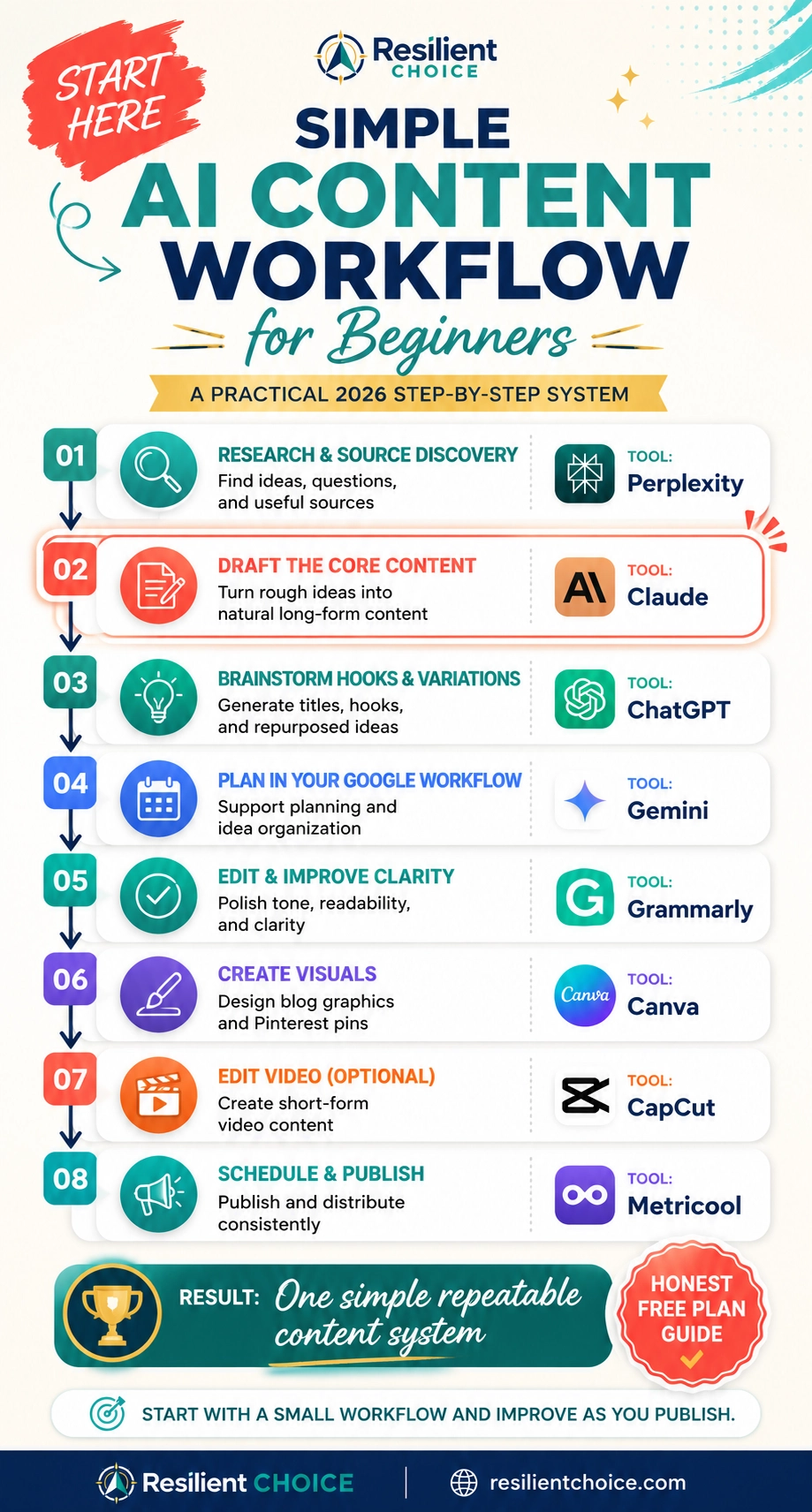
A tool list is useful, but a workflow is more useful. Beginners usually do not fail because they lack tools. They fail because the tools are not connected to a repeatable publishing system.
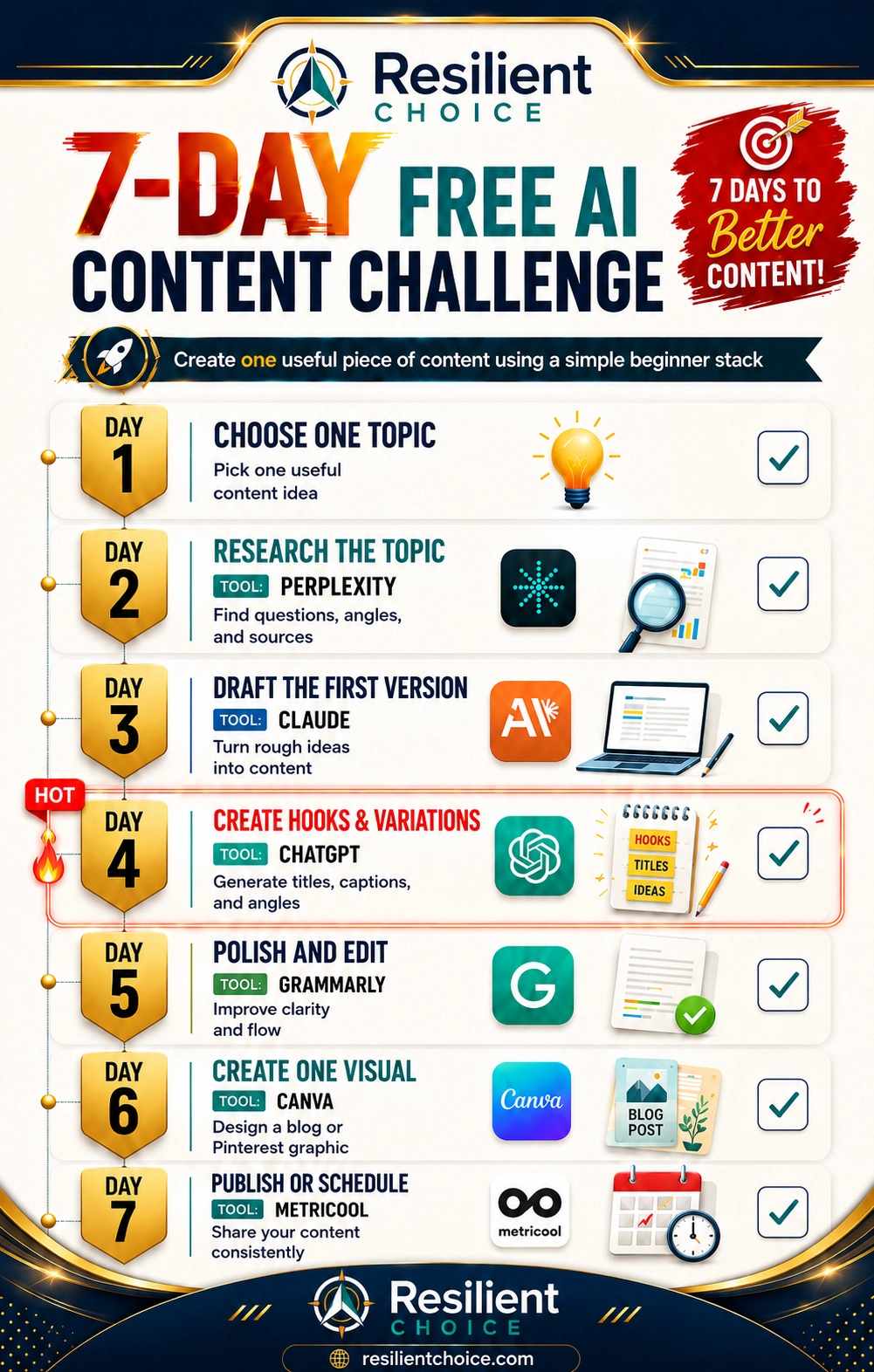
Keep the workflow simple: research the topic, draft the content, create better hooks, edit for clarity, design one useful visual, and then publish or schedule it.
If you only remember one thing from this guide, remember this: use Perplexity before writing, use Claude for the first serious draft, use ChatGPT for hooks and repurposing, use Canva for visuals, and use Metricool or native scheduling only after the content is ready.
After publishing content, build one simple lead-capture path.
A content workflow becomes more valuable when readers have a next step. Our Systeme.io review for beginners explains whether you can use the free plan to test a landing page, email list, funnel, and digital product setup.
Phase 3: Best Free AI Editing and Humanizing Tools
This is the step most beginners skip. They generate a draft, feel excited, and publish too quickly. That is how AI content starts sounding flat, generic, and forgettable.
Editing is where your content becomes yours.
Grammarly — Best for Polishing and Readability
Grammarly is useful after you already have a draft. It helps clean up grammar, sentence flow, spelling, tone, and clarity. Think of it as a final polish tool, not your main content strategist.
Use it when your draft feels almost ready but still needs cleaner sentences and better readability.
Do not obsess over AI detector scores. AI detectors can be unreliable. Your real job is to make the article useful, specific, human, accurate, and easy to read.
Official reference: Grammarly
Claude — Best for Making Drafts Sound Less Robotic
Claude is also useful after the first draft. If a paragraph sounds too stiff, too polished, or too “AI-written,” ask Claude to rewrite it in a more natural beginner-friendly tone.
“Rewrite this section so it sounds like a practical human mentor explaining it to a beginner. Keep it clear, remove robotic phrasing, add one real-world example, and avoid hype.”
The point is not to hide AI. The point is to remove lazy, generic writing and make the content genuinely helpful.
Manual Human Review — The Step No Tool Can Replace
Before publishing, read your content like a real person. Ask:
- Would a beginner actually understand this?
- Did I verify the important claims?
- Is there any example from real use?
- Did I remove generic AI phrases?
- Does this article answer the search intent better than competitors?
This is where trust is built. AI can help you move faster, but your judgment is what makes the article worth reading.
Phase 4: Best Free AI Design Tools for Beginners
Good visuals make content easier to understand. For beginners, the goal is not to become a designer overnight. The goal is to create simple, branded images that support the article and make people want to keep reading.
Canva — Best for Blog Graphics, Pinterest Pins, and Simple Infographics
Canva is one of the most beginner-friendly design tools for blog images, Pinterest pins, simple charts, checklists, and social media graphics. If you are building a content website, this is one of the first visual tools worth learning.
Use Canva for:
- featured images
- Pinterest pins
- checklist graphics
- comparison graphics
- simple infographics
- social media quote cards
Canva AI is useful, but not unlimited. Canva says Free users get limited monthly AI usage, including up to 200 uses for Standard AI tools or up to 20 uses for Premium AI tools.
Official reference: Canva AI usage limits
Microsoft Designer — Simple Alternative for Quick Visuals
Microsoft Designer can be useful when you want fast social graphics, simple image ideas, or quick design variations. It is not always a replacement for Canva, but it is a good second option for beginners who want to test different visual styles.
My practical recommendation is simple: use Canva as your main visual workspace and use Microsoft Designer when you want a quick alternative design angle.
Official reference: Microsoft Designer
Phase 5: Best Free AI Video and Audio Tools for Beginners
Video and audio tools are where beginners often hit hidden limits. A tool may look free while editing, but the problem appears at export time. That is painful if you already spent two hours creating a video.
CapCut — Best Beginner Video Editor
CapCut is one of the easiest tools for creating short-form videos, captions, Reels, TikToks, YouTube Shorts, and simple educational clips. If you are starting with video, this is usually more practical than complex professional editing software.
Use CapCut for:
- short videos
- basic captions
- text overlays
- simple cuts
- creator-style video templates
Stay alert while editing. If you use templates, effects, music, fonts, or transitions marked as Pro, you may run into upgrade prompts or export limitations. Use free assets if you want to keep the workflow truly free.
Official reference: CapCut Standard vs Pro
Descript — Useful, But Test Export Rules First
Descript can be useful for editing spoken content, podcasts, screen recordings, and transcript-based video editing. But I would not recommend making it your main free video export tool without testing the current free export rules first.
Before editing a serious video, create a 30-second test project and check the export quality, watermark rules, and any limits. That small test can save you a lot of frustration.
Official reference: Descript pricing
ElevenLabs — Powerful AI Voice Tool, But Not a Free Monetization Shortcut
ElevenLabs is a powerful AI voice platform, but beginners must be careful with commercial use. If you are making YouTube videos, client videos, ads, paid courses, or monetized content, do not assume free voice generation gives you full commercial rights.
ElevenLabs says the free plan does not include a commercial license and cannot be used for commercial purposes. If voice content will be monetized, check the current plan terms before publishing.
Official reference: ElevenLabs publishing and commercial use policy
Phase 6: Best Free Scheduling and Distribution Tools
Creating content is only half the job. You also need to publish it consistently. But beginners should not overcomplicate scheduling too early. Start simple.
Metricool — Best Free Scheduler for Beginner Creators
Metricool is useful when you want to plan and schedule social posts without manually posting every time. It is especially helpful once you have a few articles, pins, or social posts ready.
Metricool’s Free plan currently allows one brand and up to 20 scheduled posts per month, which is enough for a beginner who is testing a simple content rhythm.
Official reference: Metricool pricing
Buffer — Good for Simple Social Scheduling
Buffer is another simple scheduling tool. It is clean, beginner-friendly, and useful if you only need basic social media scheduling.
Buffer says its Free plan allows 10 scheduled posts per channel. That can work for light posting, but it may feel limited if you publish often.
Official reference: Buffer pricing
Pinterest Native Scheduling — Good Enough at the Start
If your main focus is Pinterest, you do not need to pay for a scheduler immediately. Pinterest’s own publishing tools are enough when you are still creating your first few articles and testing which pins get saved.
For Resilient Choice, the better move is to publish strong articles first, then create one or two high-quality pins per article.
Phase 7: Free Forms and Automation for Later
Automation is useful, but not on day one. First, learn to create content. Then automate the boring parts.
Tally — Simple Free Forms for Beginners
Tally is useful if you want to collect questions, newsletter signups, feedback, or simple lead information. It feels like writing in a document, which makes it easier for non-technical beginners.
Tally says it offers unlimited forms and submissions for free, as long as usage stays within its fair usage guidelines.
Official reference: Tally pricing
Make — Better Free Automation Option for Beginners Who Want Multi-Step Workflows
Make is useful when you are ready to connect tools together. For example, you could send a form submission to Google Sheets, save content ideas, trigger an email, or organize a simple content workflow.
Make’s Free plan includes up to 1,000 credits per month and a visual workflow builder, which is enough to learn simple automation before upgrading.
Official reference: Make pricing
Zapier — Good for Basic One-Step Automations
Zapier is easier for many beginners because it feels simple and guided. The trade-off is that the Free plan can become limiting quickly if you need more tasks or more complex automation.
Zapier says its Free plan includes 100 tasks per month, which is fine for testing simple workflows but not enough for heavy automation.
If you want a broader business automation stack later, read our guide on AI tools for online business beginners.
Official reference: Zapier pricing
Best Free AI Stack by Content Goal
The right stack depends on what you are trying to create. Here is the simple version.
| Content Goal | Recommended Free Stack | Why This Stack Works |
|---|---|---|
| Blog article | Perplexity + Claude + Grammarly + Canva | Research first, natural draft second, polish third, visual last. |
| Pinterest pins | Claude or ChatGPT + Canva + Pinterest Scheduler | Use AI for ideas and Canva for branded pin design. |
| YouTube Shorts | ChatGPT + CapCut + Canva | Use ChatGPT for hooks, CapCut for editing, Canva for visual assets. |
| Instagram content | ChatGPT + Canva + Metricool | Good for captions, simple visuals, and light scheduling. |
| Product review | Perplexity + Claude + Grammarly + Canva | Research and verification matter more than speed. |
| Simple business workflow | Tally + Google Sheets + Make | Good starting point for collecting and organizing information. |
Tools to Be Careful With as a Beginner
These tools can be useful, but I would not put them at the center of a beginner’s free stack without understanding the limits.
| Tool | Why Be Careful? | Better Beginner Approach |
|---|---|---|
| Descript | Export rules, watermark rules, and AI features can change by plan. | Test a 30-second sample before editing a full video. |
| ElevenLabs | Free plan does not include commercial rights. | Use only for personal testing unless you upgrade and verify terms. |
| Premium image generators | Free generations may have limits, public visibility, or licensing restrictions. | Use Canva or Microsoft Designer first for simple visuals. |
| Jasper / Surfer-style tools | Many are paid tools or short trials, not true free beginner tools. | Do not call trials “free tools” in a trust-first workflow. |
| Too many AI writing tools | Switching constantly creates tool paralysis. | Pick one main writing tool and one backup. |
Your 7-Day Free AI Content Challenge
Reading about tools is easy. Publishing something useful is harder. This simple challenge helps you use the stack without overthinking.
Internal Guides to Read Next
Build the simple funnel after you create the content.
If your next step is a landing page, email list, and beginner funnel, read our Systeme.io review for beginners to decide whether the free plan is enough before paying for separate tools.
- Best AI Tools for Online Business Beginners
- Best Free Tools for Digital Marketing Beginners
- Productivity Tips for Work From Home Beginners
Frequently Asked Questions
What are the best free AI tools for content creation beginners?
A practical beginner stack is Perplexity for research, Claude for writing, ChatGPT for brainstorming and repurposing, Gemini for Google-connected planning, Grammarly for editing, Canva for visuals, CapCut for video, Metricool for scheduling, and Make for simple automation.
Is Claude better than ChatGPT for writing?
Claude is often stronger for natural long-form writing and human-sounding rewrites. ChatGPT is stronger for brainstorming, outlines, hooks, variations, and repurposing. The better choice depends on the task.
Is ChatGPT free enough for content creation?
Yes, for light brainstorming, outlines, captions, and repurposing. But the free plan has usage limits, so beginners should also know alternatives like Claude, Gemini, and Perplexity.
Is Perplexity good for content research?
Yes. Perplexity is useful before writing because it helps you explore sources, questions, and angles. Still, open important sources yourself and verify facts before publishing.
Is Gemini useful for content creators?
Yes, especially if your workflow already includes Google Search, YouTube, Docs, Sheets, Gmail, or Android. It is useful for planning, summaries, brainstorming, and getting a second opinion.
Is Canva AI free to use?
Canva has free AI usage, but it is not unlimited. Canva’s official AI access page explains that Free users have monthly limits for Standard and Premium AI tools.
What is the best free AI tool for Pinterest pins?
Canva is the best beginner option for Pinterest pins because it is easy to use, template-friendly, and good for branded visuals. Microsoft Designer can be a useful backup.
What is the best free AI video editing tool?
CapCut is the most practical beginner option for short-form video. Just avoid Pro assets if you want to stay on a free workflow.
Can I create content using only free AI tools?
Yes, especially while learning. Free tools are enough to research, draft, edit, design, and publish your first pieces of content. Upgrade only when a tool saves time, improves quality, or directly supports revenue.
Will Google penalize my blog if I use AI tools?
Google’s guidance focuses on helpful, original, people-first content. Raw, mass-produced AI content created only to manipulate rankings is risky. AI-assisted content that is fact-checked, edited, useful, and original is a much better approach.
Official reference: Google guidance on using generative AI content
Final Takeaway: AI Is an Assistant, Not an Autopilot
Do not try to master every free AI tool this week. That is how beginners stay stuck in research mode.
Start with a simple workflow: research with Perplexity, write with Claude, brainstorm with ChatGPT, plan with Gemini, edit with Grammarly, design with Canva, and publish consistently. That is enough to build your first real content system.
The best free AI tools for content creation beginners are the tools that help you finish useful content, not the tools that make you sign up for another dashboard and delay publishing.
After your content workflow becomes consistent, then you can explore deeper automation, business tools, and systems from our guide on AI tools for online business beginners.
When you are ready to turn content into leads, our Systeme.io review for beginners can help you decide whether the free plan is enough for a simple landing page, email list, and funnel setup.
- Pick one topic today.
- Use one research tool.
- Create one useful draft.
- Design one simple visual.
- Publish or schedule it.
That is how a beginner becomes consistent: not by collecting more tools, but by finishing more useful content.