
How to Create a Systeme.io Landing Page: Step-by-Step
Create an opt-in page, connect an email campaign, add the automation rule, and test the complete signup flow using the current Systeme.io dashboard.
Editorial transparency: This guide contains affiliate links. If you create an account through one of these links, I may earn a commission at no extra cost to you. The tutorial remains focused on the practical beginner setup.
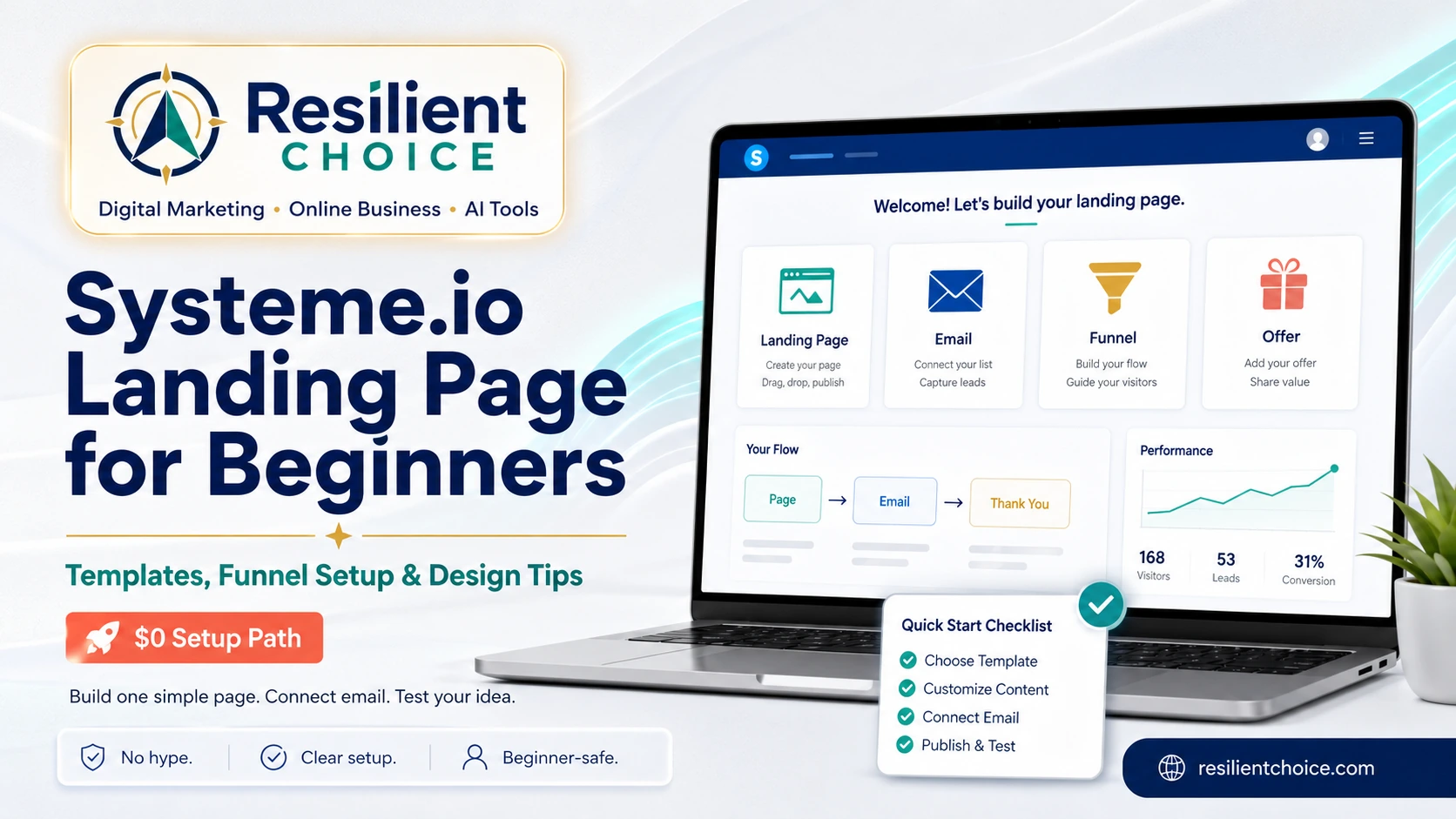
This Systeme.io landing page tutorial shows you how to create a working opt-in page from start to finish. You will create the funnel, choose a template, edit the form, connect an email campaign, add an automation rule, and test the complete subscriber journey.
The simplest beginner setup is a Build an Audience funnel containing one opt-in page and one thank-you page. It is enough to collect emails for a free guide, checklist, waitlist, newsletter, affiliate bonus, or small digital offer without connecting several separate tools.
Quick answer: how do you create a Systeme.io landing page?
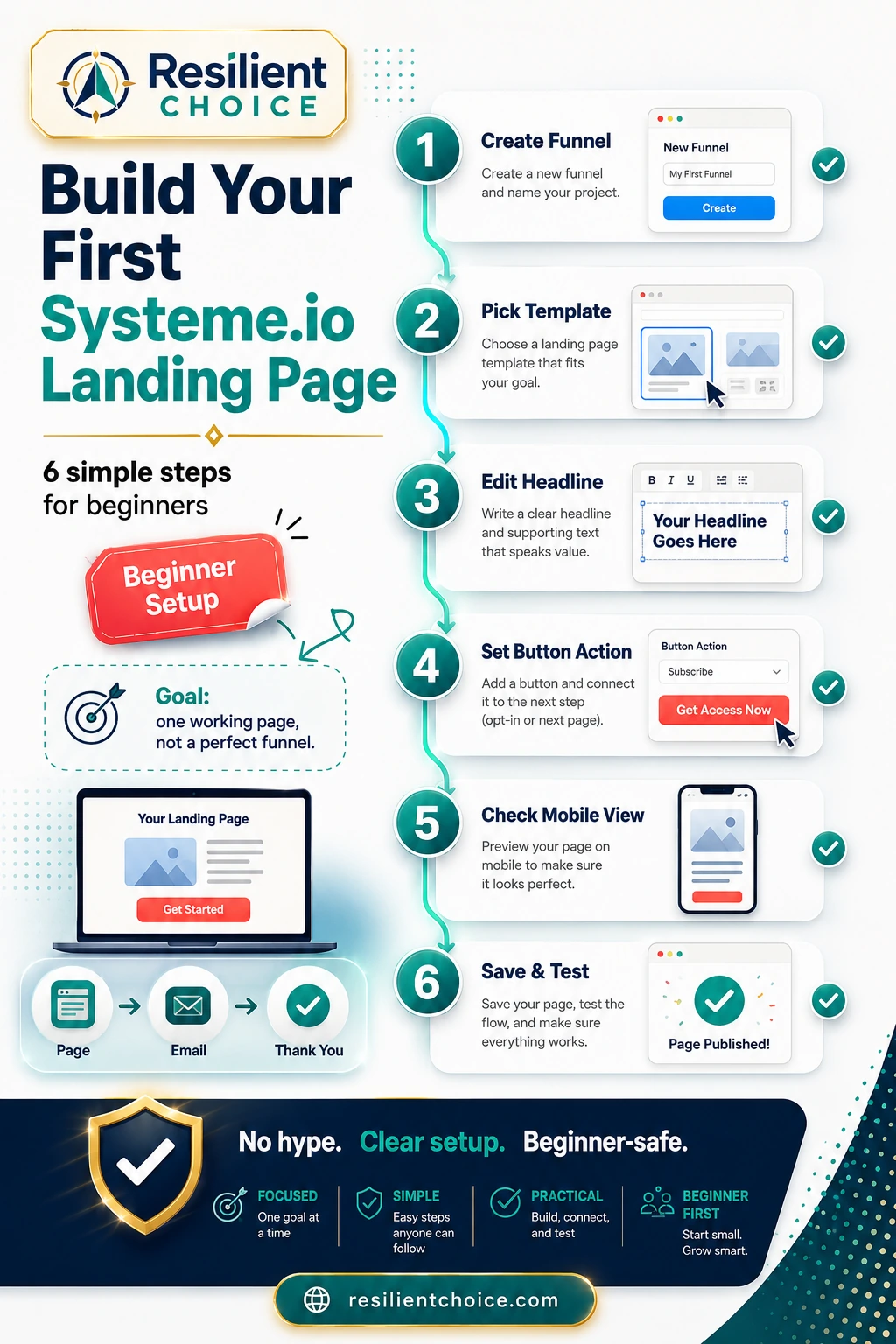
- Open Sites → Sales funnels and click Create.
- Choose Build an Audience to create an opt-in page and thank-you page.
- Select a simple landing-page template.
- Edit the headline, form field, button, and mobile layout.
- Create a campaign under Emails → Campaigns.
- Create an automation using Funnel step form subscribed → Subscribe to campaign.
- Submit your own email and test the page, thank-you step, contact record, and first email.
Best beginner rule: publish one clear page before building a complicated funnel.
Before you start: decide the one job of the page
A landing page should ask the visitor to take one clear action. Decide that action before choosing colours, fonts, templates, or images.
- Free guide: collect an email and deliver a PDF.
- Waitlist: validate demand for a product or service.
- Newsletter: collect subscribers around one topic.
- Affiliate bonus: explain and deliver a useful bonus.
- Mini-course: register people for a short email sequence.
- Service inquiry: collect qualified leads for follow-up.
For this tutorial, the example goal is simple: collect an email address and send a welcome campaign automatically.
How to create a Systeme.io landing page step by step
Follow these steps in order. Do not add advanced automations, extra pages, upsells, or multiple campaigns until this basic flow works correctly.
Current navigation used in this tutorial:
Sites → Sales funnels → Create
Emails → Campaigns → Create
Automations → Rules → Funnel step form subscribed →
Subscribe to campaign
Test the complete signup flow before publishing
A landing page is not finished when it looks good. It is finished when the complete visitor journey works.
- Open the published landing page in an incognito window.
- Submit an email address that is not already in your account.
- Confirm the button sends you to the correct thank-you page.
- Check that the new contact appears under Contacts.
- Confirm the automation rule was triggered.
- Check that the contact was subscribed to the right campaign.
- Confirm the first email arrived and all links work.
- Repeat the test on a mobile phone.
Common hidden failure: a page can look perfect while the form button, automation rule, campaign subscription, or first email is configured incorrectly. Test with a real email before sending traffic.
Create your first landing page on the free plan
Start with one opt-in page, one thank-you page, one campaign, and one automation rule. Upgrade only when a real plan limit blocks your next step.
No credit card required. Test the complete workflow first.
Systeme.io landing page template structures
Do not choose a template because it looks impressive. Choose it because its structure matches the job of your page.
| Landing-page type | Best use | Recommended structure |
|---|---|---|
| Free guide opt-in | Email-list growth | Specific promise → 3 benefits → email field → CTA → privacy note |
| Waitlist page | Product validation | Problem → proposed outcome → who it is for → email field → update promise |
| Affiliate bonus page | Affiliate campaigns | Offer context → bonus value → email field → delivery explanation |
| Mini-course signup | Email education series | Course result → lesson preview → email field → start date or instant access |
| Service inquiry | Lead generation | Outcome → ideal client → process → short form → response-time expectation |
Landing page vs sales funnel: the simple difference
A landing page is the single page a visitor sees. A sales funnel is the connected sequence of pages and follow-up actions that guide the visitor to the next step.
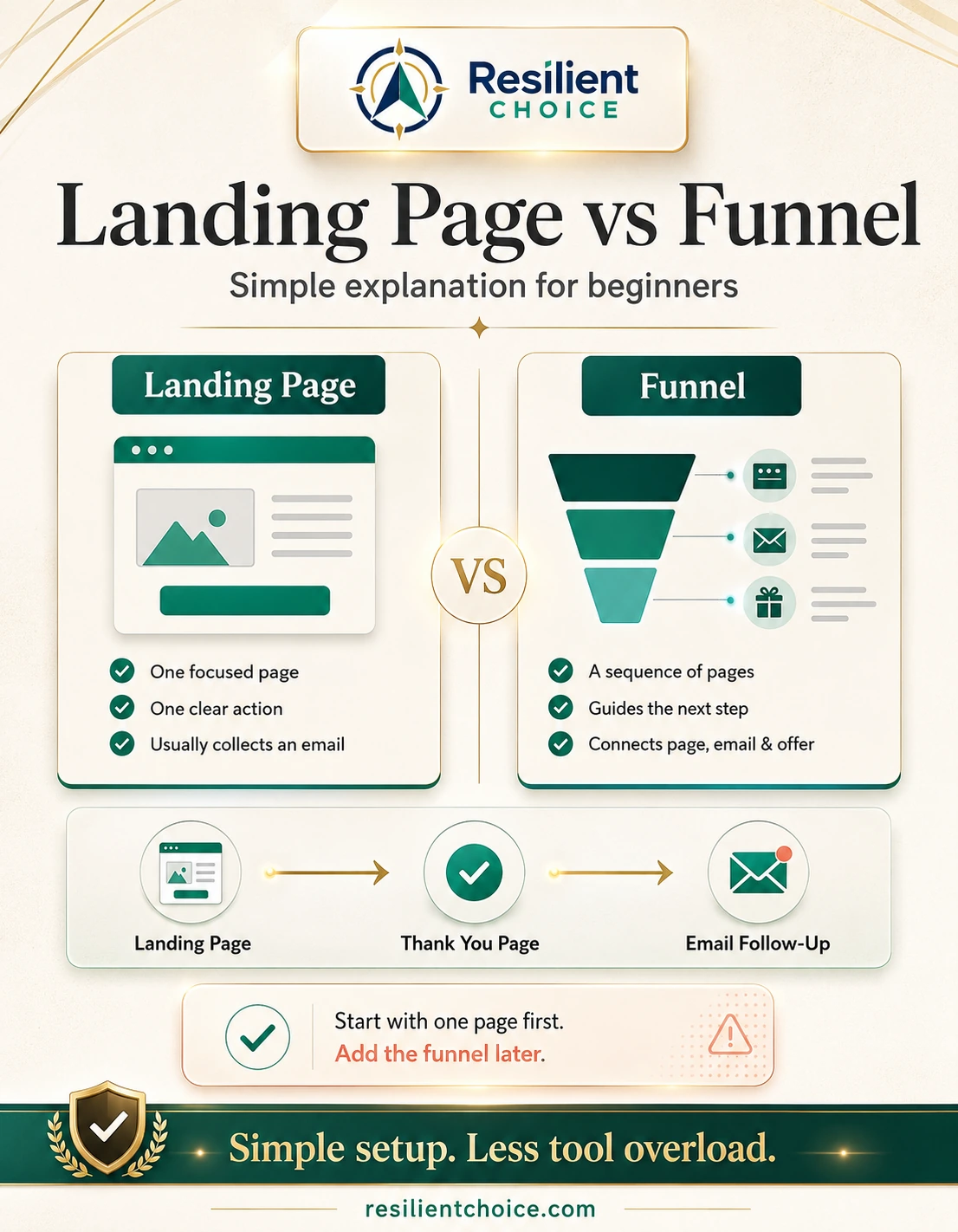
For a beginner, the minimum useful funnel is:
- Opt-in page: explains the benefit and collects the email.
- Thank-you page: confirms what happens next.
- Email campaign: delivers the promised resource or sequence.
- Automation rule: connects the form submission to the campaign.
Systeme.io landing page mistakes to avoid
What weakens conversions
- A vague headline such as “Join my newsletter.”
- Several navigation links and competing buttons.
- Asking for information you do not need.
- A form button that is not set to submit correctly.
- Long paragraphs before explaining the offer.
- A desktop design that becomes unreadable on mobile.
- No explanation of what happens after signup.
What to do instead
- Promise one specific result.
- Use one primary CTA.
- Ask only for the email unless more data is essential.
- Test the button and automation yourself.
- Show the main benefit above the fold.
- Check the mobile preview and a real phone.
- Use a clear thank-you message.
Troubleshooting: why is the landing page not working?
| Problem | Likely cause | What to check |
|---|---|---|
| Email is not saved | Wrong form or button action | Confirm the email input type and that the button submits the form. |
| Thank-you page does not open | Funnel step or button destination is incorrect | Check the next funnel step and publish both pages. |
| Contact appears but no email arrives | Campaign or automation is inactive or incorrect | Check the trigger, action, selected campaign, sender email, and email status. |
| Page looks broken on mobile | Oversized text, margins, columns, or images | Use mobile preview, reduce spacing, and test on a physical phone. |
| Visitors do not submit the form | Weak promise or too much friction | Clarify the outcome, shorten the page, and ask for less information. |
Best content upgrade for this tutorial: add your own current Systeme.io screenshots for the Sales funnels screen, Create popup, template selection, page editor, Campaigns screen, automation rule, and successful test. Original screenshots make the instructions easier to trust and follow.
Can you build a Systeme.io landing page for free?
Yes. Systeme.io currently offers a permanent free plan that is sufficient for testing one beginner landing-page funnel. The current plan information lists up to 2,000 contacts, 3 sales funnels, 1 custom domain, unlimited email sends, and limited automation resources.
The free plan is best used as a testing environment. Build one functioning funnel, collect real signups, and upgrade only when a contact, funnel, campaign, automation, domain, or workflow limit becomes a genuine constraint.
Plan limits can change: confirm the current limits on the official Systeme.io pricing page and inside Profile picture → Settings → My plan before making a long-term setup decision.
When Systeme.io is a good fit
- You want to collect emails without connecting a separate page builder and email platform.
- You are testing a free guide, waitlist, newsletter, affiliate bonus, course, service, or small digital product.
- You prefer a visual editor and basic automation without coding.
- You want to validate demand before paying for a larger software stack.
When another setup may be better
- You need a highly customised content website with advanced WordPress SEO control.
- You operate a complex physical-product store.
- You need sophisticated enterprise-level segmentation, reporting, or integrations.
- Your design depends on advanced animation or unusually complex interactions.
Build one working page before expanding the funnel
Create the opt-in page, connect one campaign, test the automation, and send a small amount of traffic. Real behaviour will tell you what to improve next.
Create a Free Systeme.io Account
Start free. Upgrade only when a real limit blocks progress.
Frequently asked questions
How do I create a landing page in Systeme.io?
Open Sites, select Sales funnels, click Create, and choose Build an Audience. Select an opt-in template, edit the page, configure the thank-you page, connect an email campaign, add an automation rule, and test the complete flow.
Can I build a Systeme.io landing page without coding?
Yes. Systeme.io uses a visual editor for page sections, text, images, forms, and buttons. You can create and publish a basic landing page without writing code.
Which Systeme.io funnel type should a beginner choose?
Choose Build an Audience when your goal is to collect email subscribers. It creates a simple opt-in page and thank-you page structure.
How do I connect a Systeme.io landing page to an email campaign?
Create a campaign under Emails → Campaigns. Then create an automation rule using Funnel step form subscribed as the trigger and Subscribe to campaign as the action.
Why is my Systeme.io form not collecting emails?
Check that the page contains an email input field, the button is configured to submit the form, the page is published, and the test email is not being blocked by an incorrect setting.
Is the Systeme.io free plan enough for one landing page?
Yes. The free plan is sufficient for testing a basic opt-in funnel, thank-you page, email campaign, and limited automation. Confirm the latest plan limits before relying on specific numbers.
What should I put on a beginner landing page?
Use one specific headline, a short explanation, three clear benefits, one email field, one primary CTA, and a brief trust or privacy note. Remove unnecessary menus and competing actions.
Should I use Systeme.io or WordPress for landing pages?
Systeme.io is simpler when you want the page, form, email, and automation in one platform. WordPress offers more design and content flexibility but may require additional plugins or integrations.
Related Resilient Choice guides
Official sources and review notes
Review method: The menu paths and setup steps in this tutorial were checked against current official Systeme.io help documentation. Features, plan limits, and interface labels can change, so verify critical settings inside your own dashboard.